
Sales
Sales (“CRM » Sales”) is used to organize leads, accounts/contacts and opportunities in order to generate sales, otherwise referred to as Salesforce-automation . In combination with Analytics, Segmentation or Tracking , the tool provides the necessary means to target specific customers more efficiently and to distribute the tasks among the salesforce. “Sales” consists of:
- Accounts
- Contacts
- Leads
- Opportunities
Accounts#
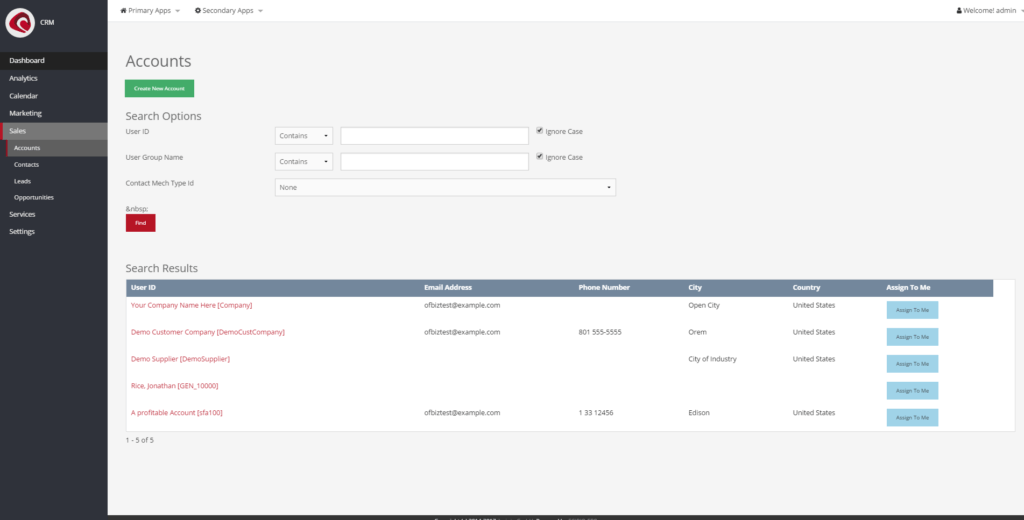
The accounts screen (“CRM » Sales » Accounts”) is used to create and manage accounts. Accounts can have the following attributes
- Group-Name
- No of employees
- Office Site Name
- General Correspondence Address
- Country
- Phone number (+extension)
- Email-Address
Once created, accounts can be assigned to “Opportunities” or “Leads”. Notes can be added to all accounts in order to share account specific information in the shared database. They can also be assigned to specific parties, so that a distribution within the workforce is possible.
Contacts#
Contacts (“CRM » Sales » Contacts”) resemble the digital Rolodex of yesterday. The form offers the lookup of contact information, which can then be used for marketing purposes. Contact information can be assigned to existing parties, in order to create a connection between both information.
Leads#
Leads (“CRM » Sales » Leads”) are used to identify parties, which have shown an interest in the product or are more likely to be receptive towards advertising efforts. Leads are similar to contacts, but can feature specific “Lead Source” information, in which one can distinguish the way the lead was generated. Leads can be assigned to existing parties and towards sales-force representatives.
Opportunities#
Opportunities (“CRM » Sales » Opportunities”) are marketing efforts, which can spawn an interest in a product. They share the folllowing attributes:
- Sales Opportunity Id
- Opportunity Name
- Opportunity description
- Next Step & next step date (what should we do next)
- Estimated amount & currency (to be used to display costs)
- Initial stage
- prospect
- proposal
- quoted
- closed
- Probability
- Source
- Campaign
- Cold Call
- Conference
- Direct Mail
- Employee
- Existing Customer
- Partner
- Public Relations
- Self Generated
- Trade Show
- Web Site
- Word of mouth
- Other
- Initial Account
- Lead
- Close Date
- Type
- Customization
- ERP
- Ecommerce
- Installation
- Support plan
More Types can be added to the database. If an account is added, the account will automatically display the opportunity as part of the “Account” screens.
Do it with an agent#
Sales ships an MCP server. Point your agent at the sales webapp and it keeps the pipeline in order while you talk to people.
claude mcp add --transport http scipio-sfa "https://<host>/sfa/mcp" --header "Authorization: Bearer <token>"One tool carries the application. Every call names the tool and one action.
sfa—lead_create,lead_find,lead_convert,opportunity_create,opportunity_update,opportunity_find,account_create,contact_create,contacts_merge,activity_create,comm_event_create.
Qualify a lead#
“Take the lead from the trade fair, convert it into an account with a contact and open an opportunity for 40 bikes.”
The agent calls sfa:lead_find, sfa:lead_convert and
sfa:opportunity_create. The account and the contact are party records, so
the user management application shows the same people.
Log the call and plan the next step#
“I called the buyer. Note it, move the opportunity to the offer stage and put a follow-up in my calendar for Thursday.”
The agent calls sfa:comm_event_create, sfa:opportunity_update and
sfa:activity_create. The activity is a work effort, so it shows in the
calendar
.
Clean the duplicates#
“These two contacts are the same person. Merge them and keep the newer address.”
The agent calls sfa:contacts_merge. A merge is a confirmed call and cannot
be undone, so read the two records first.
The token is a user login. The agent does what that user may do, and nothing more. Every call writes one audit row. Read the security model before you hand a token out.