
Manufacturing
Fundamental Manufacturing Concepts and Processes#
In an automation system that implements any sort of manufacturing capabilities, your business may choose to employ either one or a combination of both of the following main processes:
- Make to Stock (MTS): This process is triggered by the need to maintain minimum stock levels of products, ensuring that you always have inventory on hand in a warehouse or shop to fulfill customer orders promptly.
- Make to Order (MTO): This process is initiated by specific customer orders, with each product being manufactured specifically for the individual customer. There is no need to hold stock in a warehouse or shop.
In order to support these manufacturing processes effectively, it is also essential to have the correct raw materials in stock at the appropriate time. Ths is where “Raw Materials Procurement” comes into play.
Scipio ERP provides comprehensive support for both Make to Stock (MTS) and Make to Order (MTO) processes, as well as Raw Materials Procurement.
Basic use-case scenario#
Step 1: Configure Product Data#
Set up Raw Materials#
Our first task is to set up our raw materials within Scipio ERP. Follow these steps in the Product Manager and refer to the list below:
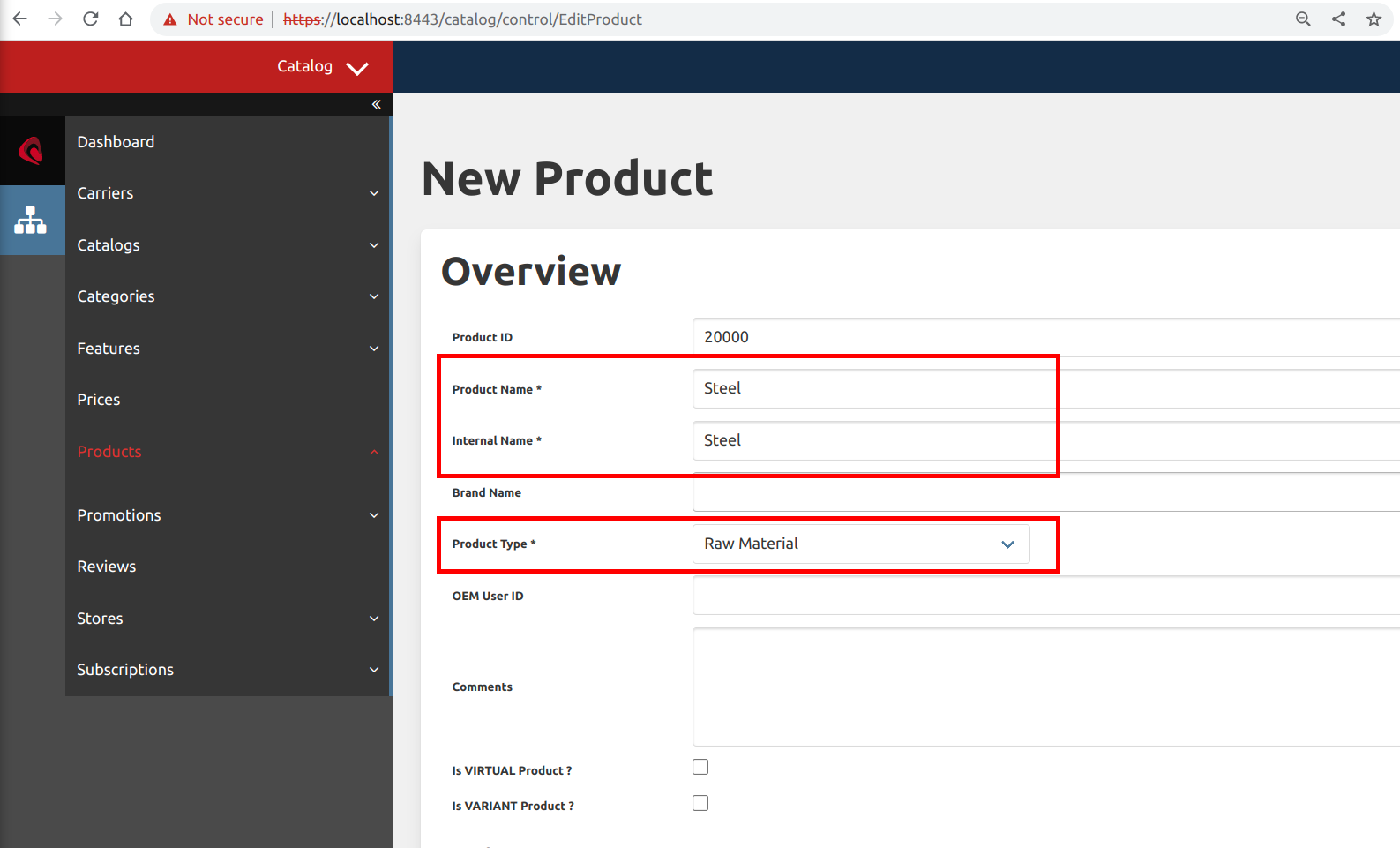
- Create Raw Material Products: In the Product Manager, create new products of type “Raw Materials” for steel, screws, and paint. Assign unique Product IDs to each.
| Steel | Screws | Paint |
|---|---|---|
|
|
|
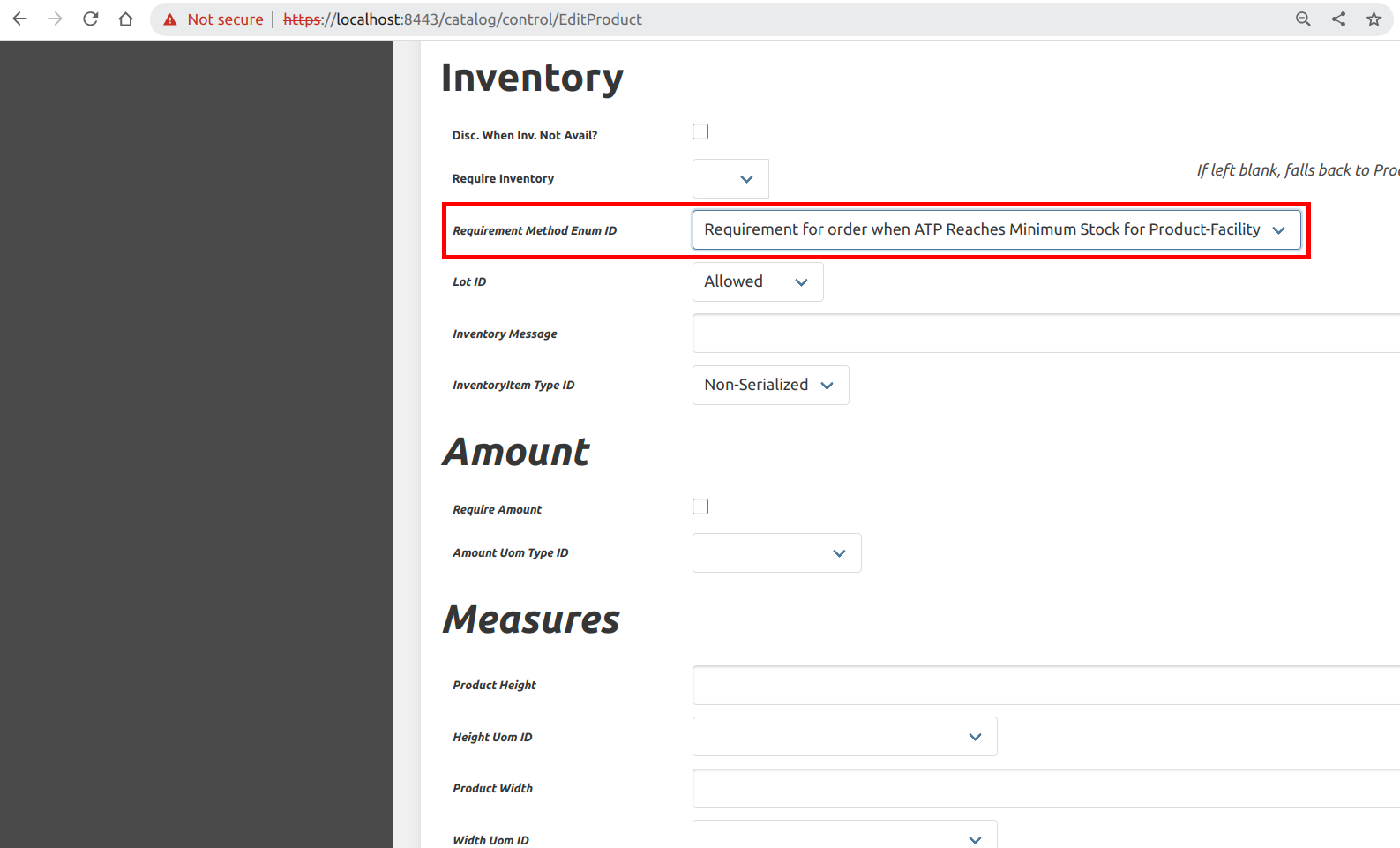
- Set Requirement Method: Ensure that the “Requirement Method Enum Id” for each raw material product is set to “When QOH Reaches Minimum Stock for Product Facility.” Requirement for order when ATP Reaches Minimum Stock for Product-Facility
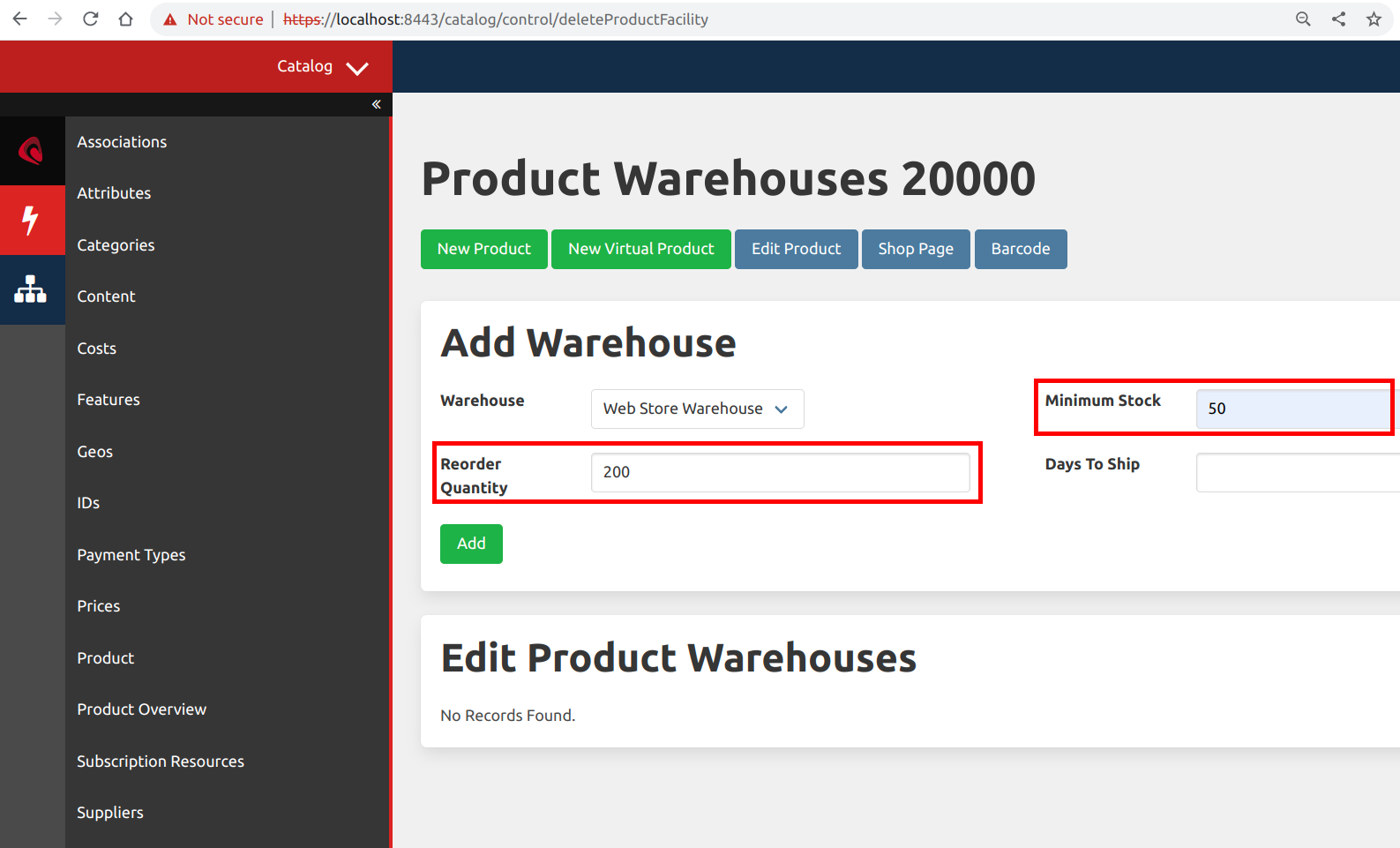
- Set Reorder Quantity and Minimum Stock: Configure the reorder quantity and minimum stock fields using the product “Facilities” left menu entry. Select the appropriate facility (e.g., Warehouse A) as the “Facility Id.”
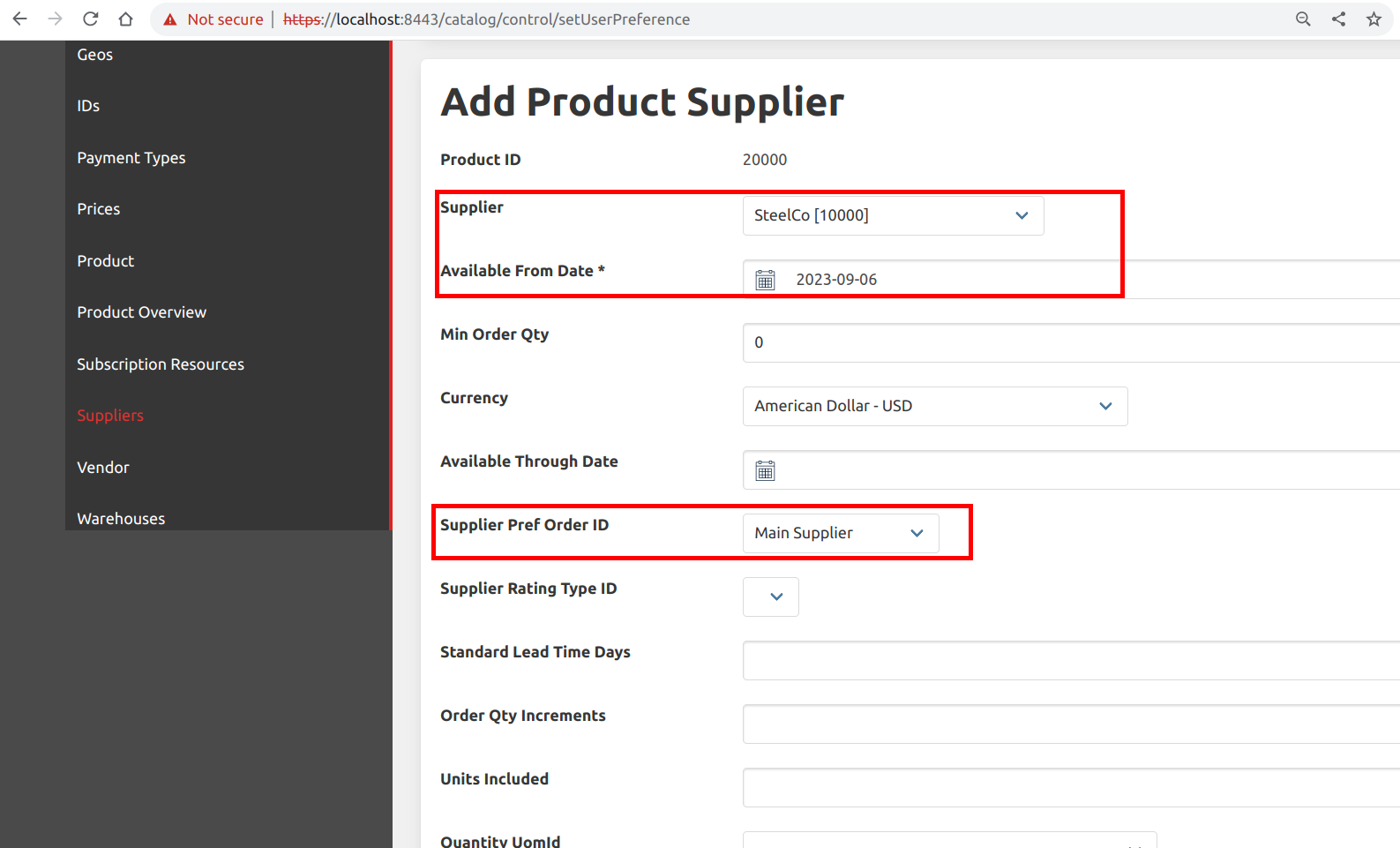
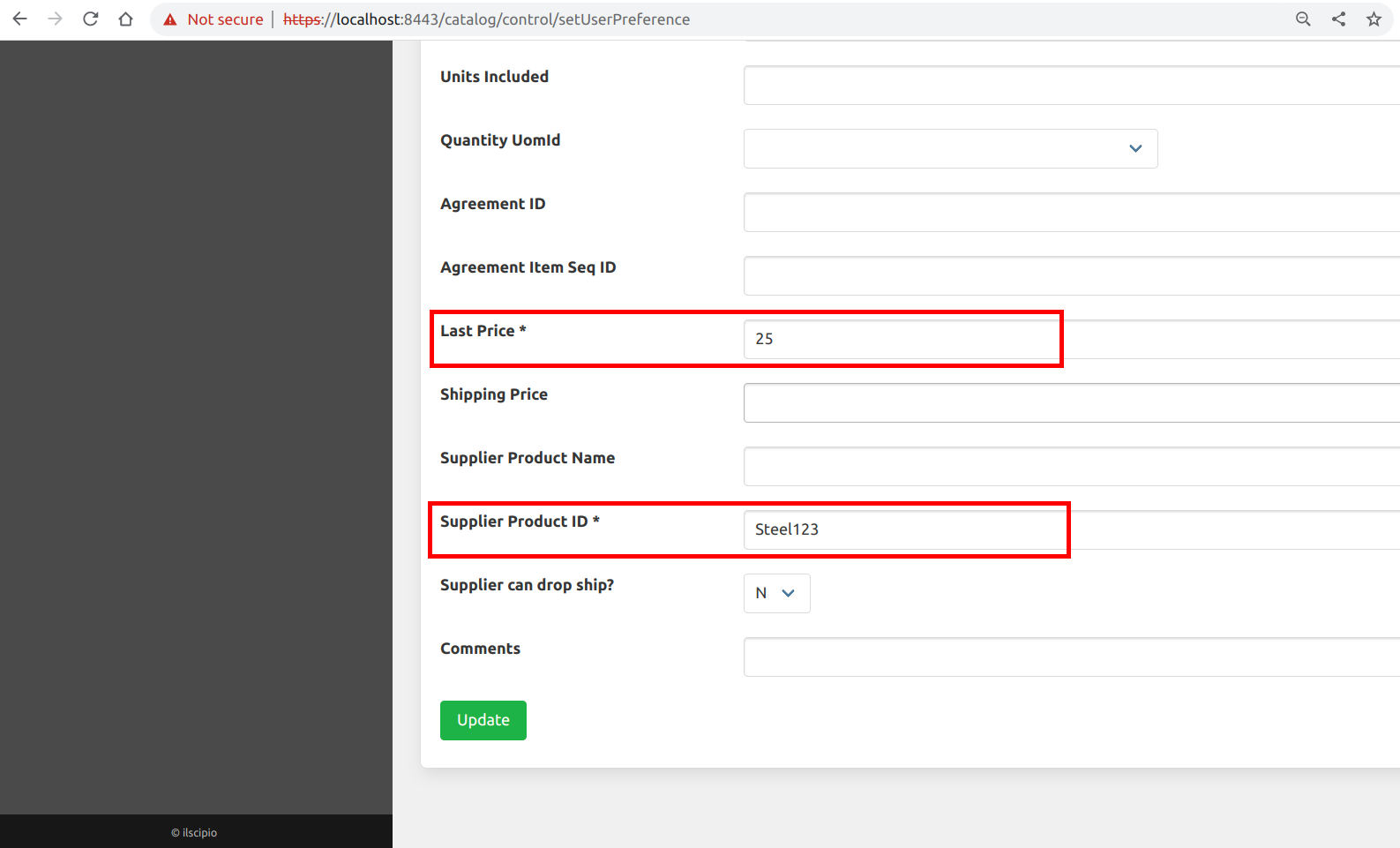
- Set Up Suppliers: Set up one supplier for each raw material product using the product “Suppliers” left menu entry.
| For Steel | For Screws | For Paint |
|---|---|---|
|
|
|
Set up the Manufactured Product (Chair)#
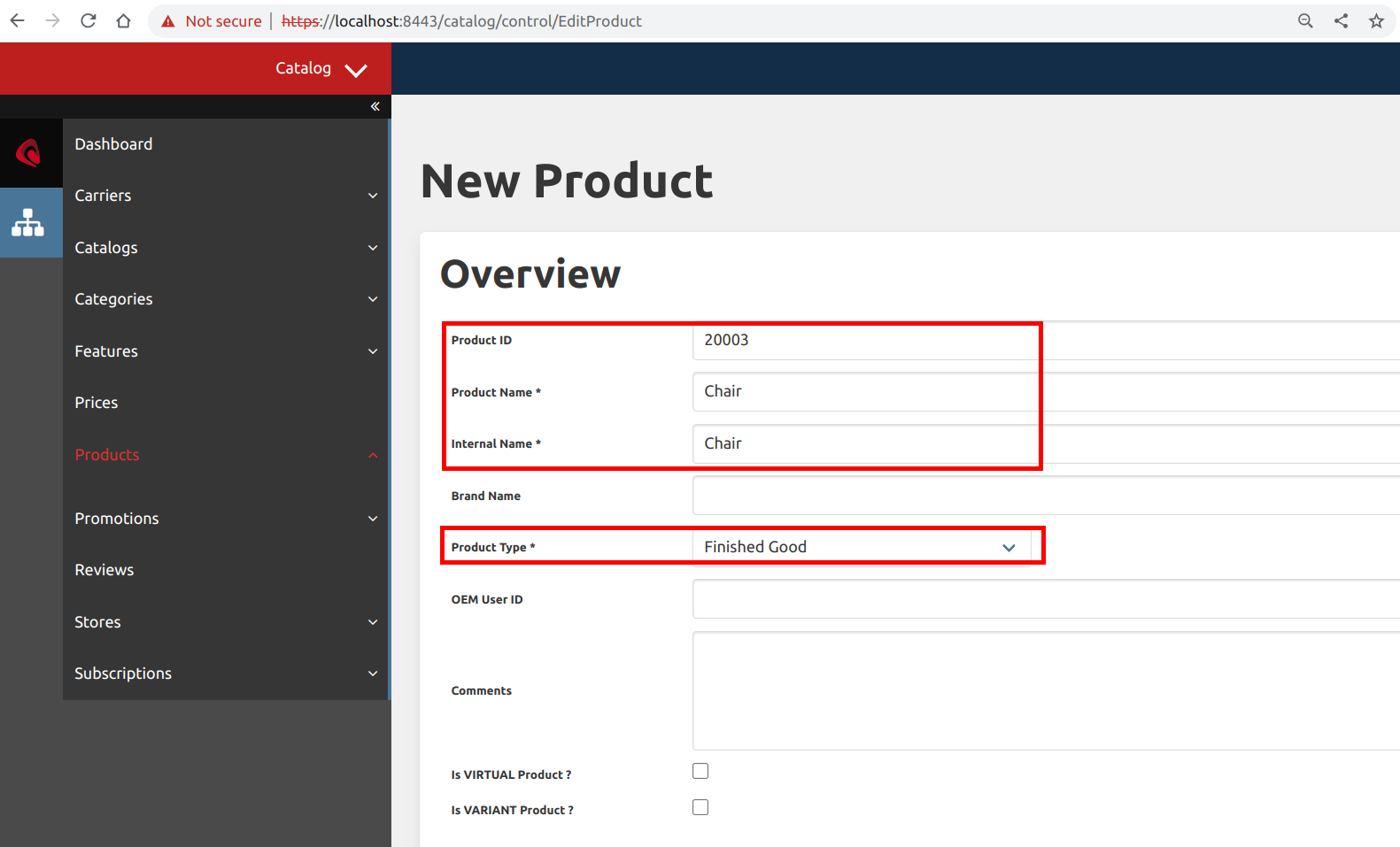
Create Manufactured Product: Use the Product Manager to create a new product for the manufactured product, which is a chair. Set its type as “Finished Good” and assign it a unique Product ID:
- Chair:
- Product ID: 20003
- Product Name: Chair
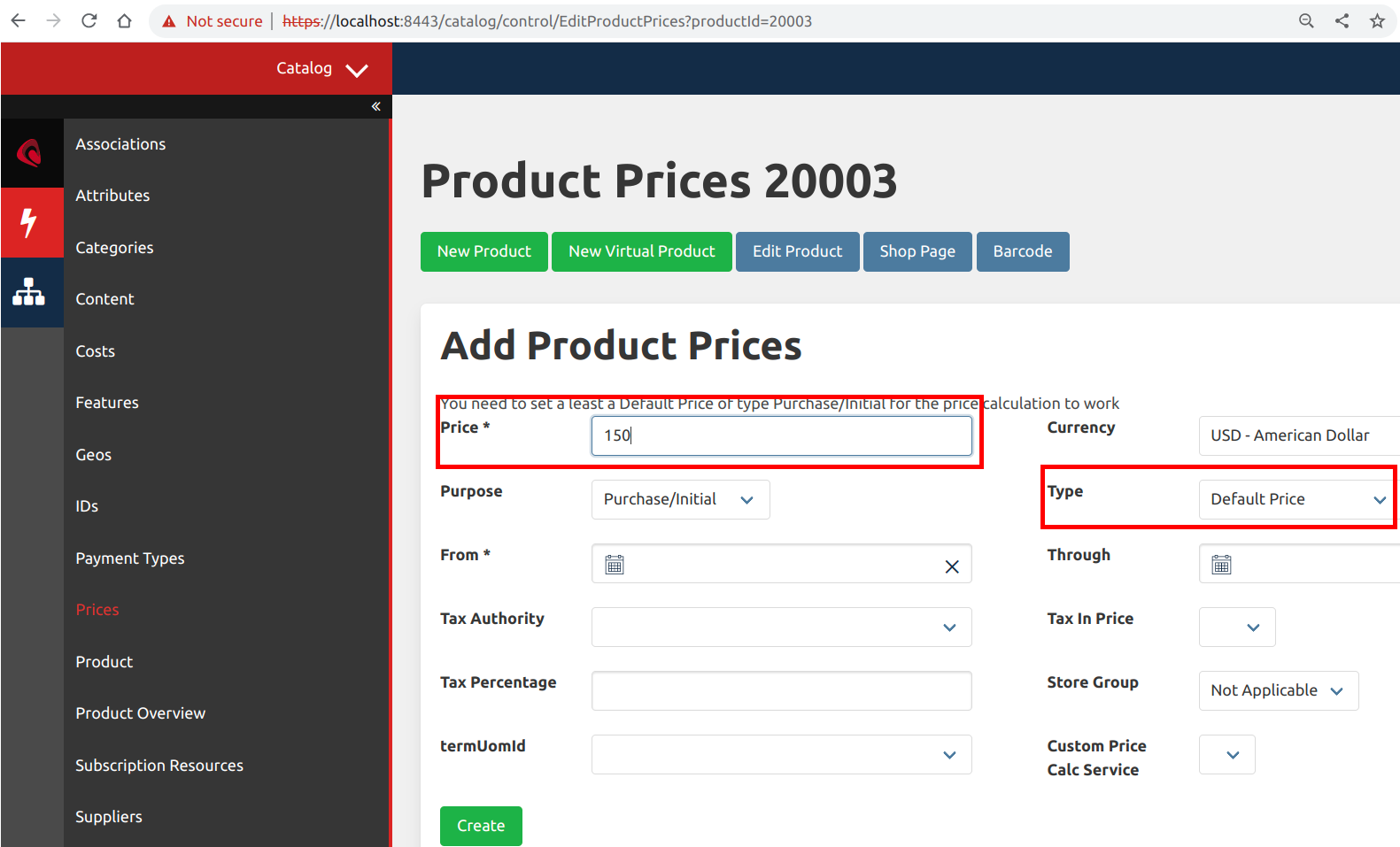
- Default Price: $150.00
- Minimum Stock: 10
- Chair:
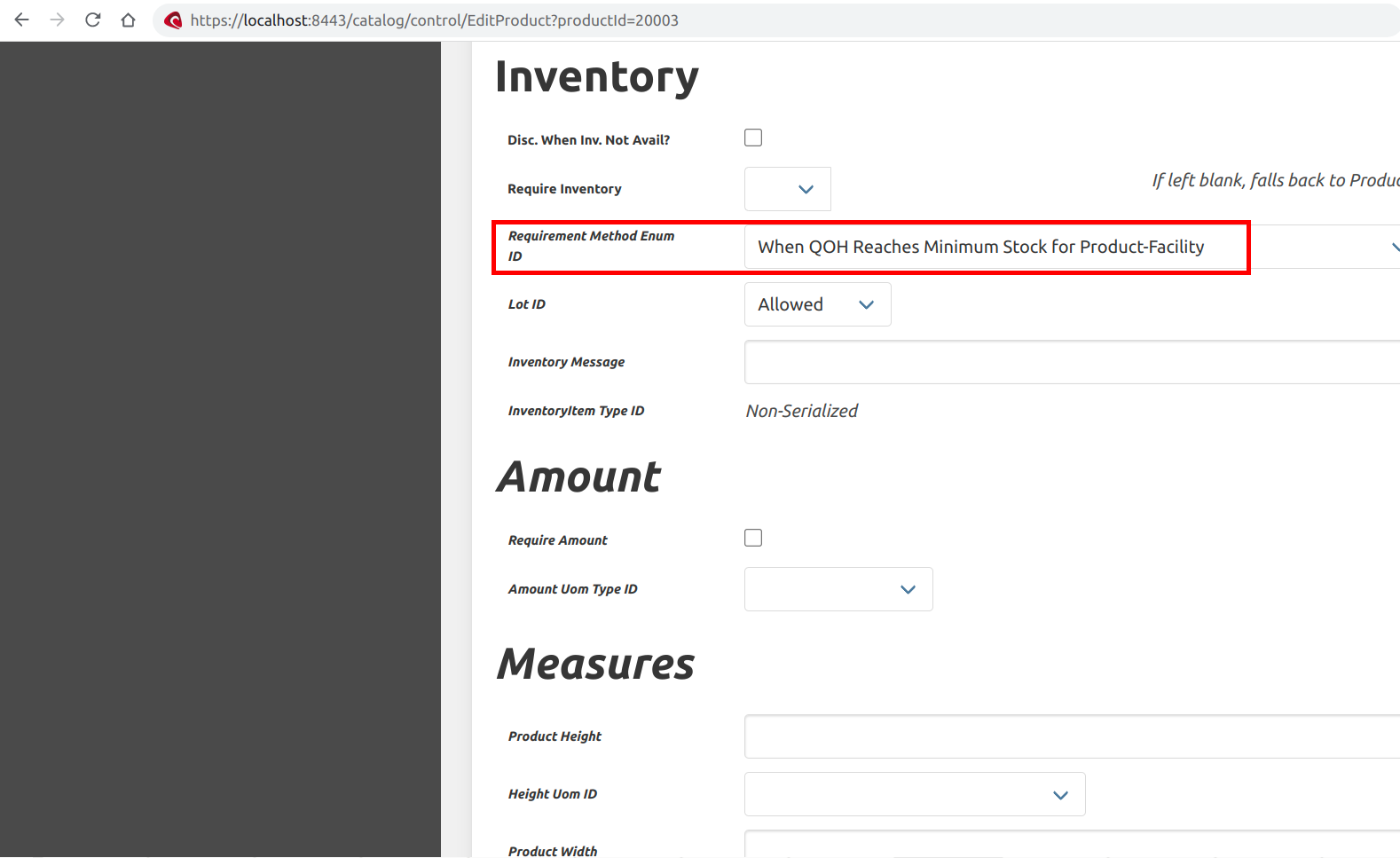
Set Requirement Method: Ensure that the “Requirement Method Enum Id” is set to “When QOH Reaches Minimum Stock for Product Facility.”
Since it is manufactured internally and doesn’t need to be ordered from a supplier, you may leave the reorder quantity field empty.
Step 2: Configure Manufacturing Data#
Set up the Bill of Material (BOM)#
In this step, we’ll establish a Bill of Materials (BOM) for our manufactured product, the metallic chair. A Bill of Materials is essentially a list of the raw materials or ingredients needed to craft our final product. After setting up our raw materials in the previous step, it’s time to define the relationship between the chair and its required raw materials using the BOM.
- Create a New Bill of Materials (BOM): Initiate the process by selecting the ‘Create BOM’ option within the Bill of Materials top menu entry in the Manufacturing Manager.
- Enter BOM Details: Populate the BOM with the relevant information:
|
|
|
- Add Products: Follow the example below to add the first product (Steel) to the BOM:
- Enter Product ID for ‘Chair’
- Enter Product ID for ‘Steel’
- Enter Quantity: 4
- Add Additional Products: After adding the first product (Steel), proceed to include the remaining products (Screws and Paint) into the Bill of Materials.
Set Up Routing Tasks#
In the next phase, we’ll define Routing Tasks, which represent the individual steps required to transform raw materials into the finished metallic chair.
- Create a New Routing Task: Click the ‘New Routing Task’ button within the Routing Task left menu entry in the Manufacturing Manager.
- Define Routing Tasks: Establish new routing tasks:
Task Description: Cut Steel
- Task Name: Cut Steel to Size
- Task Type: Manufacturing
Task Description: Assemble Chair
- Task Name: Assemble Chair Components
- Task Type: Manufacturing
Task Description: Paint Chair
- Task Name: Apply Paint Coating
- Task Type: Manufacturing
Task Description: Quality Check
- Task Name: Perform Quality Inspection
- Task Type: Manufacturing
Set Up Routing#
In this phase, we will configure the routing tasks, which define the sequential steps required to transform our raw materials into the finished metallic chair. We need to ensure that these tasks are linked together in the correct order and that all metallic chairs will follow these manufacturing steps. This is achieved through the use of a “Routing.”
Tasks required to manufacture the metallic chair, performed in sequence:
- Cut steel
- Assemble chair components
- Paint chair
- Perform quality inspection
To set up the routing, use the Manufacturing Manager:
Create a New Routing: Begin by clicking the ‘New Routing’ button within the Routing left menu entry.
Enter Routing Details: Provide the following routing details:
- Routing Name: Chair Routing
- Description: Routing to Make Metallic Chairs
Add Routing Task Sequence: Using the “Edit Routing Task Assoc” left menu entry, add the details from the table below. Please use the Task IDs generated by the Manufacturing Manager for Cut Steel, Assemble Chair Components, Paint Chair, and Perform Quality Inspection.
Routing Task ID Sequence 10000 10 10001 20 10002 30 10003 40
Now, to ensure that every metallic chair we manufacture follows this routing, proceed as follows:
- Associate the Product: Click on the “Edit Routing Product Link” left menu entry and add the Product ID for ‘Metallic Chair’. After entering the Product ID, click the “Update” button.
By completing these steps, you’ve effectively set up the routing for manufacturing metallic chairs, ensuring that all chairs produced will follow this sequence of tasks.
Step 3: Run MRP and Review the Results#
In this step, we’ll run MRP for the first time and examine the insights it provides. Before we proceed, let’s quickly recap our setup instructions for MRP:
- When manufacturing a metallic chair, use 4 units of steel, 16 screws, and 1 can of paint.
- Maintain a minimum stock of 10 metallic chairs. When this level is reached, prompt for additional chair production.
- Maintain a minimum stock of 25 units of steel. When this level is reached, prompt for an order of 100 more units.
- Maintain a minimum stock of 100 screws. When this level is reached, prompt for an order of 500 more screws.
- Maintain a minimum stock of 1 can of paint. When this level is reached, prompt for an order of 20 more cans.
Using Manufacturing Manager to Run MRP#
Use Manufacturing Manager to execute the following steps:
- Go to the “MRP” left menu entry and initiate the MRP report, with the following parameters:
- MRP Name: MRP1
- Facility Group: Leave blank
- Facility: Web Store Warehouse
- Default Year Offset: 1
- Navigate to the “MRP Log” left menu entry to check if the program has finished running. It will display a “Status ID” of ‘Finished’ under the “Last Job” section of the screen once the process is complete.
- View the MRP results by clicking the “Find” button.
- Go to the “MRP” left menu entry and initiate the MRP report, with the following parameters:
Interpreting the MRP Report Results#
- Look for the entry concerning steel in the results. It informs us that we have no steel in stock, and we need to order it from a supplier before manufacturing more metallic chairs.
- Examine the entries for screws and paint, which follow a similar pattern as the steel entry but with different order quantities.
- Find the entry for the metallic chair in the MRP results. It indicates that we have no metallic chairs in stock, and we need to maintain a minimum of 5 in stock.
Using Order Manager to View MRP-Generated Requirements#
- Navigate to the Order Manager / Requirements left menu entry.
- Click the “Find” button to view the requirements generated by MRP.
Approving and Managing Requirements#
- Requirements created by MRP will be displayed with the status “Proposed.”
- A “Product Requirement” has been created for steel, screws, and paint, recommending quantities based on the re-order quantity specified during product setup.
- An ‘Internal Requirement’ has been generated by MRP for manufacturing the metallic chairs needed to maintain stock.
Using Manufacturing Manager to View Production Runs#
After approving the “Internal Requirement” for metallic chairs, ScipioERP will automatically generate a “Production Run” to manufacture them.
- To view the Production Run, navigate to the Manufacturing Manager and click the “Jobshop” left menu entry.
- Click on the “Production Run ID” number to access the details of that Production Run.
Important Note: You cannot execute this production run until you have purchased the required raw materials. So, let’s proceed to purchase them.
Using Order Manager for Quick Purchase Order Entry#
ScipioERP simplifies creating a Purchase Order based on MRP details, particularly when preferred suppliers are linked to products.
- Navigate to the Order Manager, select the “Requirements” left menu entry, and then click on the “Approve Product Requirements” left menu entry.
- Check the boxes for all required raw materials (steel, screws, and paint), and click the “Submit” button to approve the requirements.
- Click the “Prepare Order” button and then the “Purchase Order Quick Entry” button to create the order for raw materials.
- In a real business scenario, this Purchase Order would be approved and sent to the supplier. For demonstration purposes, we’ll fast-track this process.
- In the Purchase Order details screen, click the “Approve Order” button to approve the Purchase Order.
- Next, click the “Quick Receive Purchase Order” to receive the shipment of raw materials items into the WebStoreWarehouse.
- Select the ‘Purchase Shipment’ radio button and click ‘Receive Selected Shipment.’
- Click the “Receive Selected Products” button to receive all the raw materials into the Web Store Warehouse.
Now that the raw materials are available, we can proceed with running the Production Run.
Using Manufacturing Manager to Run a Production Run#
To execute a Production Run for manufacturing metallic chairs, follow these steps using Manufacturing Manager:
- In the Manufacturing Manage, locate the Production Run associated with metallic chair production and change its status to ‘Confirmed.’
- After confirming the Production Run, you can run each manufacturing task quickly using the “Quick Run all Tasks” feature. Please note that this feature assumes that all 5 metallic chairs are to be manufactured without any issues.
The Production Run has successfully completed.
Upon completion of a production run, you will be prompted to “declare and produce.” This is where you specify the number of products manufactured during the production run. Since we created 5 metallic chairs, we will declare that quantity.
- Declare the 5 metallic chairs produced and add them to your inventory.
With this step, the production of metallic chairs has been successfully recorded and added to your inventory.
The application in 4.0#
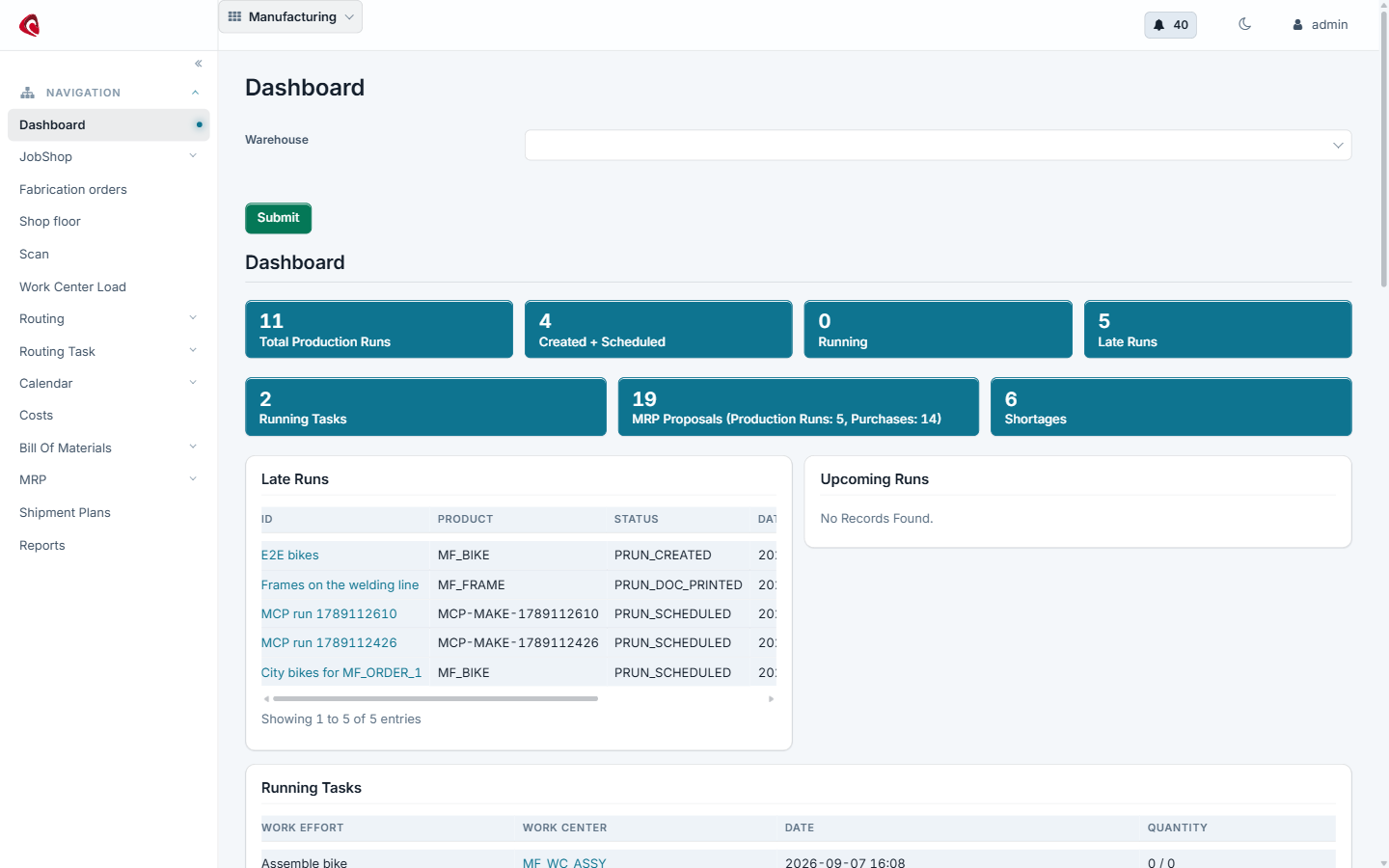
The manufacturing dashboard in 4.0: the runs of the plant, the late ones, the running tasks, the open MRP proposals and the material shortages.
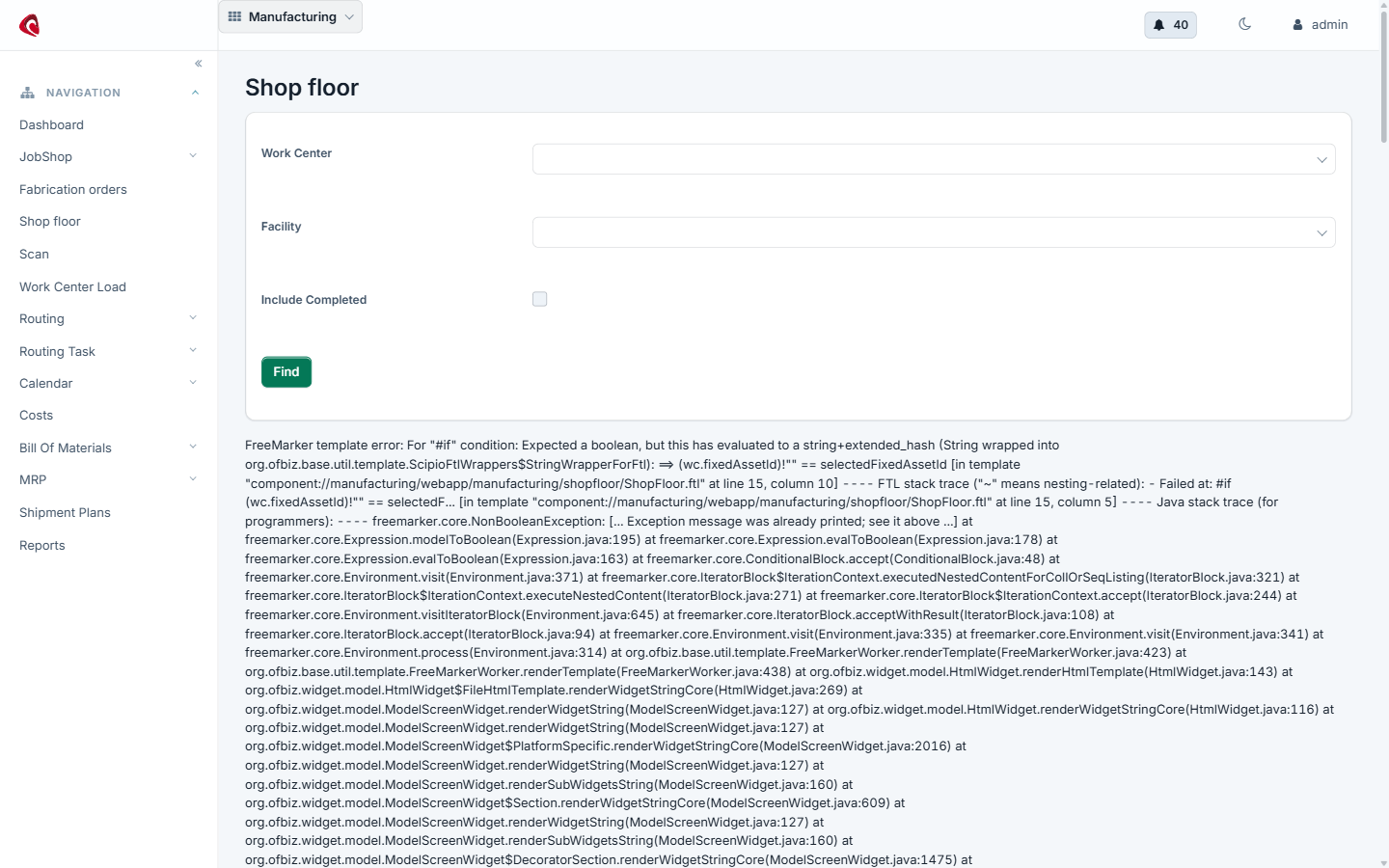
The shop floor screen: the operator picks the machine, starts the task and declares the output. The same screen reads a Code 128 barcode from the run’s label sheet.
Do it with an agent#
Manufacturing ships an MCP server with twelve agent tools. Point your agent at the manufacturing webapp and it plans, releases and reports the work.
claude mcp add --transport http scipio-manufacturing "https://<host>/manufacturing/mcp" --header "Authorization: Bearer <token>"Five tools carry the application. Every call names the tool and one action.
bom—get,tree,set,update,remove,where_used,rule_add,cost_get,cost_calculate,routing_create,routing_task_add,routing_get,import.mrp—run,proposals,proposal_approve,proposal_reject,requirement_to_run,find.production_run—create,create_for_order,find,get,set_status,task_set_status,task_switch_machine,component_add,component_update,component_replace,issue_components,produce,declare,scan,scans_get,lot_reserve,lot_release,lot_reservations,rejects,release,cancel,cost_variance.fabrication_order—create,get,update,set_status,run_add,run_remove.shop_floor—dashboard,tasks,work_center_load,work_center_create,calendar_create,calendar_week_set,schedule_check.
Explode a bill of material and price it#
“Explode the bill of material of MF_BIKE level by level and tell me the standard cost of one unit.”
The agent calls bom:tree and bom:cost_calculate. Ask bom:where_used for
the other way round: which products a part sits in before you change it.
Run MRP and hand the buying over#
“Run MRP for the main plant, show me the proposals and approve the makes. Send the buys to purchasing.”
The agent calls mrp:run, mrp:proposals, mrp:proposal_approve and
mrp:requirement_to_run. A buy proposal becomes a requirement in the order
application, where purchase_order:requirement_approve picks it up. The
proposal starts earlier by the supplier’s lead time.
Start the work on the floor#
“Which tasks are open on the welding line today? Start the first one on the robot bay and reserve 12.5 kg from steel coil lot C-118.”
The agent calls shop_floor:tasks, production_run:task_switch_machine,
production_run:task_set_status and production_run:lot_reserve. The
operator can do the same with the barcode: production_run:scan takes the
code from the label sheet.
Close the run and read the variance#
“Declare twenty good units and two rejects on run E2E bikes, then show me the cost variance per task.”
The agent calls production_run:declare, production_run:rejects and
production_run:cost_variance. The variance is standard against actual, per
task and per run.
The token is a user login. The agent does what that user may do, and nothing more. Every call writes one audit row. Read the security model before you hand a token out.